

A good operating dashboard answers a key question at a glance: is anything abnormal, and what should someone do about it? The layout rule behind that outcome is simple: keep the overview visually quiet, reserve color for exceptions, label every metric with an owner and a target, and show when the data was last refreshed.
TL;DR:
- Keep the Level 1 overview static, use muted colors for normal conditions, and test whether an unfamiliar viewer spots the problem within 3 to 5 seconds.
- Include a KPI only when it has a named owner, known measurement frequency, target, and tolerance; pair its current value with its target and variance.
- Use graduated normal, watch, and critical thresholds, aggregate alarms from one root cause, suppress known maintenance spikes, and route each alert to a named owner.
- Keep filters and scenario tools off the overview because heavy interaction can weaken situation awareness; place them on secondary screens designed for each role.
- Before launch, verify each source’s latency and refresh rate; then review metrics quarterly and log layout or threshold changes so teams can reverse them.
Table of Contents
- What an Operating Dashboard Is and When to Use One
- Design Principles and Layout: Information Hierarchy and the 5-Second Scan
- Selecting KPIs and Arranging Them for Action
- Real-Time Monitoring and Alerting Without Alert Fatigue
- Interaction, Drill-Downs, and the Cognitive Tradeoffs
- Concrete Dashboard Templates for Common Operational Teams
- Implementation Checklist for a Reliable Rollout
- Customization and Scalability as a Mid-Market Business Grows
- Security and Access Control for Operational Dashboards
- Keeping an Operating Dashboard Useful Over Time
- Getting Teams to Actually Use the Dashboard
- How Operating Dashboards Show Up in Day-to-Day Performance
- Why Dashboard Design Is an Operating Problem, Not a BI Problem
- Turning Your Operating Dashboard Into Part of a Real Operating System
- FAQ
- Sources
- Primary Standards and Research to Consult
What an Operating Dashboard Is and When to Use One
Operational dashboards are built for real-time or near-real-time decisions: a shift supervisor checking queue depth, a warehouse manager watching pick accuracy, a support lead tracking open tickets. They exist to trigger action within minutes or hours, not to support research.
That makes them different from analytical dashboards, which support deep investigation into why something happened, often with filters, cross-tabs, and export options. It also separates them from strategic dashboards, which track quarterly or annual trends for leadership reviews. Mixing these purposes is a common design mistake: an operational screen cluttered with trend-analysis tools slows down the quick scan it’s supposed to support.
Common operational use cases include IT infrastructure monitoring, inventory and warehouse throughput, OKR progress tracking for teams running weekly cadences, and health and safety incident boards. Each of these needs a screen built for rapid recognition, not exploration.
Design Principles and Layout: Information Hierarchy and the 5-Second Scan
ISA-101 HMI design guidance, built for industrial operators, defines a four-level information hierarchy that translates well to business operations. Level 1 is the overview, a single screen showing system-wide status. Level 2 shows unit or team-level detail. Level 3 supports diagnosis. Level 4 holds reference and configuration data. Navigation should flow from overview to detail, never the reverse, so operators land on the big picture first.
Color discipline follows the same standard: normal operation stays visually muted, and color appears only to flag deviations, a practice ISA-101 calls numeric-by-exception. This single rule does more for scan speed than any chart choice.
- Keep the normal state in grays and a single neutral accent color.
- Reserve red, amber, or a bold highlight strictly for out-of-tolerance values.
- Group related metrics on a grid so the eye moves in one direction, not back and forth.
- Place a “last updated” timestamp near the top of the screen or beside each time series.
A practical target is a 3 to 5 second scan: can a new viewer identify the one thing that needs attention without reading labels first? Test this by showing the screen to someone unfamiliar with it and timing how long it takes them to point at the problem.
Pro Tip: Test the dashboard on a phone screen too. If the overview alarm survives a small screen, it will survive a busy control room monitor.
Selecting KPIs and Arranging Them for Action
A metric earns a place on an operating dashboard only if it’s actionable, owned by a specific person or team, measured on a known frequency, and tied to a target with defined tolerances. A number (of) no owner and no threshold is decoration.
Formatting should reinforce that. Compact scorecards pairing the current value with its target and variance work better than raw numbers alone. Small multiples, several related metrics shown in the same chart style side by side, let a viewer compare performance across teams or shifts at a glance. Sparklines add short-term trend context without the overhead of a full chart.
- Throughput: units or tickets processed per hour, owned by the shift lead, reviewed hourly.
- Cycle time: average time from start to completion, owned by the process owner, reviewed daily.
- Open tickets past SLA: count and age, owned by support lead, reviewed continuously.
- Days on hand: inventory coverage, owned by the warehouse manager, reviewed daily.
- On-time rate: percentage of orders or jobs completed by deadline, owned by operations manager, reviewed daily.
Our guide to business performance metrics walks through how to pick metrics that map to a single accountable owner rather than a shared responsibility that nobody acts on.
Real-Time Monitoring and Alerting Without Alert Fatigue
A freshness indicator is not optional. If a viewer can’t tell whether a number is five minutes or five hours old, they can’t trust the dashboard enough to act on it. Place freshness markers in a consistent spot, typically top-right of the screen or directly beside each time series, so the eye finds them without searching.
Threshold design matters as much as placement. A single hard threshold produces a flood of alerts the moment a metric hovers near the line. Graduated alerts, where a metric moves from normal to watch to critical, give teams a warning before a full escalation and cut down on noise.
- Use graduated thresholds (normal, watch, critical) instead of a single trigger point.
- Aggregate related alarms so one root cause doesn’t generate ten separate notifications.
- Apply suppression rules during known maintenance windows or batch jobs to avoid false spikes.
- Route each alert type to a named owner, not a shared inbox that diffuses responsibility.
Alert ownership should be reviewed on a set cadence, not left to drift. A regular check of who owns each alert, and whether the threshold still makes sense, keeps the system from degrading into noise that people learn to ignore.
Interaction, Drill-Downs, and the Cognitive Tradeoffs
Situation awareness breaks into three stages: perception of the data, comprehension of what it means, and projection of what happens next. A dashboard built to support all three shows a current value against a rolling average or target rather than a bare number, which helps a viewer move from “I see a number” to “I know what it means” without extra clicks.
Interactive features like filters and what-if analysis can raise task performance on specific questions, but experimental research with eye-tracking found that heavy interactivity can also reduce situation awareness, an out-of-the-loop risk where a user gets so focused on manipulating a view that they lose track of overall system state.
- Keep Level 1 overviews static and simple, free of filters or what-if controls.
- Push deep interaction, filtering, and scenario tools to secondary screens or drill-down views.
- Use role-based views so an operator sees an action-oriented screen while an analyst sees the exploratory one.
Pro Tip: If a user has to click repeatedly to see whether something is wrong, the overview has failed its job.
Concrete Dashboard Templates for Common Operational Teams
A workable layout repeats the same structure: top-left overview alarm, center scorecards, right-side trend context, bottom drill-down list. Here’s how that plays out across common use cases.
- IT operations: overview alarm for system uptime, center scorecards for incident count and mean time to resolve, right-side trend for request volume, bottom list of open tickets by severity. Owner: IT lead. Update cadence: continuous.
- Inventory and warehouse: overview alarm for stockout risk, center scorecards for days on hand and pick accuracy, right-side trend for order volume, bottom list of SKUs below reorder point. Owner: warehouse manager. Update cadence: hourly.
- OKR tracking: overview alarm for off-track objectives, center scorecards for key result progress against target, right-side trend showing weekly movement, bottom list of blocked initiatives. Owner: team lead. Update cadence: weekly.
- Health and safety: overview alarm for open incidents, center scorecards for days since last incident and near-miss count, right-side trend for incident frequency, bottom list of corrective actions pending. Owner: safety officer. Update cadence: daily.
Size the grid so each scorecard reads clearly at arm’s length, save a view per role so an operator and a manager see different depth on the same data, and link each drill-down row to the specific playbook action a team should take when a number crosses its threshold.
Implementation Checklist for a Reliable Rollout
Before building anything, confirm every data source, its latency, who owns it, and what refresh rate is realistic given the underlying system. A dashboard promising real-time data from a source that updates hourly will erode trust fast.
- Map each metric to a data source, an owner, and an acceptable refresh rate.
- Set change control so layout or threshold edits go through a single approval path.
- Assign alert ownership and put a review cadence on the calendar.
- Run the five-second scan test and a scenario drill before go-live.
- Schedule post-rollout audits to catch drift.
Our operational assessment checklist covers the data-readiness and governance steps in more depth for teams planning a rollout.
Customization and Scalability as a Mid-Market Business Grows
A dashboard that works for a smaller operation can break as the business grows, not because the metrics change but because the number of teams, locations, and exceptions multiplies. The fix isn’t a bigger screen, it’s a layout that scales by role rather than by adding more tiles to one view.
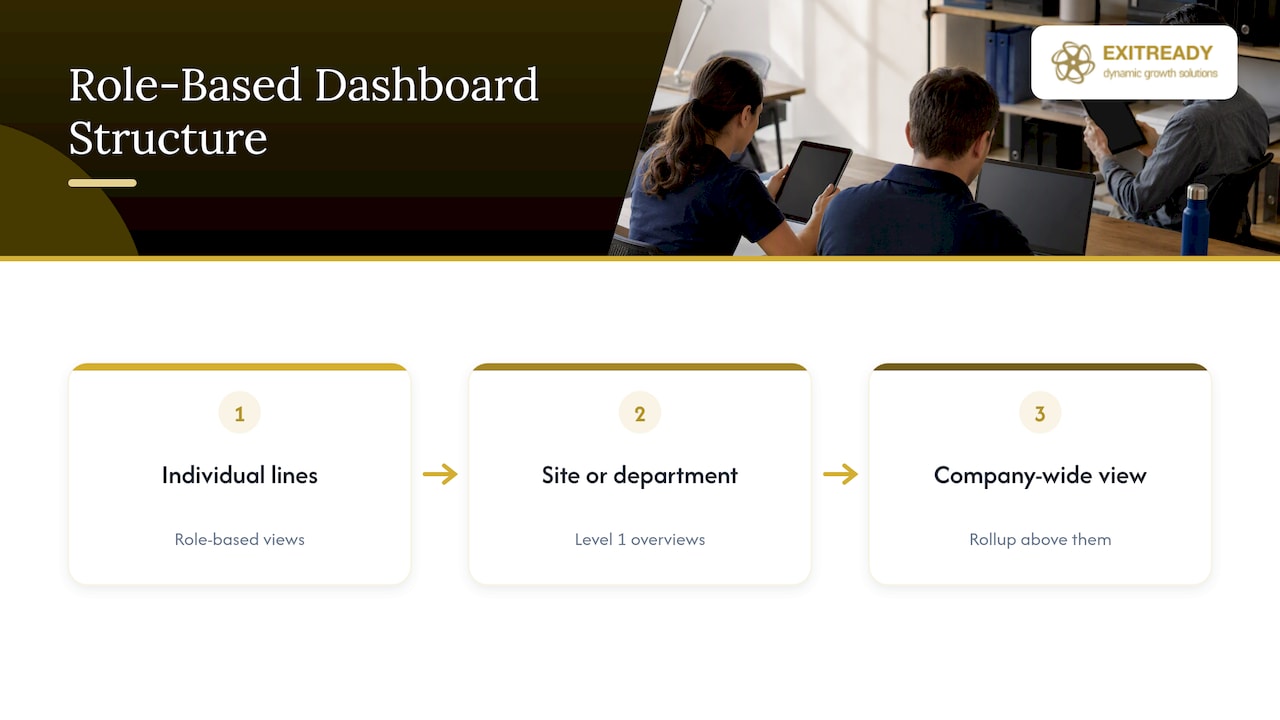
Smaller mid-market teams can often run a single overview screen with role-based filters layered on top: one shift lead sees their line, another sees theirs, and a general manager sees all lines rolled up. As headcount and location count grow, that single screen usually needs to split into a tiered structure, one Level 1 overview per site or department, with a company-wide rollup sitting above them.
Scalability also means planning for new data sources without rebuilding the whole layout. A new warehouse, a new product line, or a new region should slot into the existing template, same grid, same color rules, same scorecard format, rather than triggering a redesign. That consistency is what lets a dashboard built for one team get adapted for the next without starting over.
The practical test: when the business grows substantially in headcount or locations, does the dashboard need a new design, or just new rows in the same structure? A well-scoped template survives that growth. A one-off design built around a single team’s quirks usually doesn’t.
Security and Access Control for Operational Dashboards
Operational dashboards often surface sensitive information: incident details, individual performance numbers, customer data tied to orders or tickets. Access should follow the same principle as the layout itself, role-based and minimal by default.
A frontline operator typically needs read access to their team’s overview and drill-down, nothing more. A manager needs read access across their span of control. Edit access to thresholds, layouts, or data connections should sit with a small, named group, not with everyone who views the screen. This also protects the dashboard from drift: if anyone can move a tile or change a threshold, the “last updated” and governance rules in the earlier checklist section stop meaning anything.
Authentication should tie into whatever identity system the business already runs, rather than a separate login just for the dashboard tool, since a second credential set is both a security gap and a maintenance burden. Audit logs showing who changed a threshold or layout, and when, matter more on operational dashboards than on static reports, because a misconfigured alert can go unnoticed for weeks if nobody can trace who touched it recently.
Keeping an Operating Dashboard Useful Over Time
A dashboard that looked sharp at launch degrades without upkeep. Metrics stop mattering as the business changes, thresholds drift out of sync with actual performance, and new team members inherit tiles nobody remembers the purpose of.
Build a review cadence into the governance structure from day one, not as an afterthought. A quarterly review of every metric on the screen, asking whether it still has an owner, a relevant target, and someone actually using it to make a decision, catches most of the drift before it compounds. Metrics that nobody has acted on for a while are candidates for removal, not for a redesign.
Version control matters too. Treat layout and threshold changes the way a team would treat any other operational change, logged, reviewed, and reversible, so a well-meaning edit doesn’t quietly break the five-second scan for everyone else. The MIT Visualization Group’s heuristics for cooperative dashboard design frame a dashboard as an ongoing conversation between data and user, with phases for grounding, refinement, and repair, a useful mental model for treating maintenance as a built-in part of the design rather than a cleanup task.
Getting Teams to Actually Use the Dashboard
A technically correct dashboard that nobody checks is a wasted build. Adoption usually fails for one of two reasons: the screen wasn’t built around a real decision someone makes daily, or nobody trained the team on what action to take when a number turns red.
Training should focus less on how the software works and more on what each alert means and what the expected response is. A walkthrough tied to the actual playbook action for each threshold does more for adoption than a feature tour. New hires should see the dashboard during onboarding, not discover it three months in.
Embedding the dashboard into existing routines, a daily stand-up that opens with the overview screen, a weekly review that references the same scorecards, turns it from an optional tool into part of how the team already works. Our breakdown of a KPI cascade shows how to tie dashboard metrics to the same targets a team already reviews in its regular cadence, which removes the friction of maintaining two separate systems of record.
How Operating Dashboards Show Up in Day-to-Day Performance
The clearest sign a dashboard is working isn’t a feature list, it’s a change in how fast a team catches a problem. A warehouse team that used to discover a stockout when a customer complained, and instead catches it from a days-on-hand tile before the order ships, has shifted from reactive to proactive operations.
The same pattern shows up in support and IT contexts: a ticket queue that used to pile up quietly until someone noticed a backlog, now flags an SLA breach the moment it crosses threshold, giving a team lead time to reassign work before customers notice. None of this requires exotic tooling. It requires a layout that surfaces the right number to the right owner before the problem becomes visible from outside the team.
The common thread across these shifts is that the dashboard changes behavior, not just visibility. A screen that’s accurate but ignored changes nothing. One built around a real daily decision, with a clear owner and a clear next step, becomes part of how the operation runs rather than a report someone glances at occasionally.
Why Dashboard Design Is an Operating Problem, Not a BI Problem
Most teams treat dashboard design as a tooling decision: which BI platform, which chart library. The real failure point is almost always upstream of the tool, in whether the business has clear KPI ownership and documented actions tied to each threshold. A beautifully designed screen built on top of undefined ownership just makes the confusion more visible, faster.
The underprioritized piece is embedding the dashboard into an operating system rather than treating it as a one-off project. A screen that isn’t tied to a KPI cascade, a playbook action, and a review cadence will drift out of relevance over time, no matter how clean the layout is at launch.
— Andre
Turning Your Operating Dashboard Into Part of a Real Operating System
A dashboard only changes behavior when it’s wired into documented ownership, targets, and playbook actions, which is exactly what our AOS Value Creation Partnership and Enterprise Assessment are built to establish before any screen gets designed.

Rather than handing over a template and hoping it sticks, we start with a diagnostic of where KPI ownership is missing or unclear, then build the cascade a dashboard is supposed to reflect.
- Our assessment maps which metrics already have a real owner and which don’t.
- Our KPI cascade work ties each dashboard metric to a documented playbook action.
- Our fractional executive network can help operationalize governance once the dashboard is live.
If you’re ready to see where your operation’s KPI ownership gaps are before you build or rebuild a dashboard, start with our Enterprise Assessment.
FAQ
How do I create an operational dashboard?
Start by identifying the key decisions a team makes daily, then map each one to a metric with a named owner, a target, and a defined action for when it’s off track. Build the layout around a Level 1 overview with graduated color alerts, test it with the five-second scan rule, then add drill-down detail on secondary screens.
What is the 5-second rule for dashboards?
It’s a practical design target: a new viewer should be able to identify the most important issue on screen at a glance, without reading every label. Dashboards that fail this test usually have too much color, too many competing visual signals, or no clear hierarchy guiding the eye.
What are the four types of dashboards?
A common framework distinguishes operational dashboards for day-to-day decisions, analytical dashboards for investigating causes, strategic dashboards for long-term leadership trends, and tactical dashboards for team or department performance tracking. Each type serves a different decision horizon, and mixing their purposes on one screen usually slows down the scan the operational type depends on.
Can you give an example of an operational dashboard?
A warehouse operations dashboard typically shows an overview alarm for stockout risk, center scorecards for days on hand and pick accuracy against target, a trend panel for order volume, and a bottom list of SKUs below their reorder point. Each metric carries an owner, usually the warehouse manager, and updates at a cadence suited to the data so the team can act before a shortage reaches the customer.
How do operational dashboards connect to existing business systems?
Most operational dashboards pull data from ERP, CRM, or warehouse management systems through existing integrations or APIs rather than duplicating data entry. Automated scheduling and delivery tools, such as the patterns described in ChristianSteven’s guide to interactive BI dashboards, can help route refreshed data to the right screen without manual exports.
Sources
- Researchgate
- (PDF) The effect of interactive analytical dashboard features on situation awareness and task performance
- Heuristics for Supporting Cooperative Dashboard Design | MIT Visualization Group
- ISA-101 HMI Design: Best Practitioner Guide 2026
Primary Standards and Research to Consult
- ISA-101 HMI Design: Best Practitioner Guide 2026
- Heuristics for Supporting Cooperative Dashboard Design
- A business dashboard design approach to support the three levels of situation awareness
- The effect of interactive analytical dashboard features on situation awareness and task performance
- Role of dashboards in network management: a guide
- Interactive Data Visualization Dashboards: Turn Complex BI Data Into Faster Decisions